Our recommendation is to store images in MetaShare like any other type of document. If you are considering storing all your images in dedicated image workspaces, our recommendation is to create image workspaces based on a workspace configuration that uses a content type that inherits from the Picture content type. In modern SharePoint Online, this is the recommended parent content type when creating image-specific content types.
We recommend storing business metadata such as Photographer, Usage Rights, Copyright Owner, Category and Project in dedicated SharePoint columns (add them to your picture content type) rather than relying solely on metadata embedded in image files. This makes the metadata easier to maintain and search in MetaShare.
The Picture content type and SharePoint image processing automatically populate a number of metadata columns from image properties and image analysis. The exact properties available may vary between Microsoft 365 releases and file formats.
If you would like to view your images in a tiles view, like this:
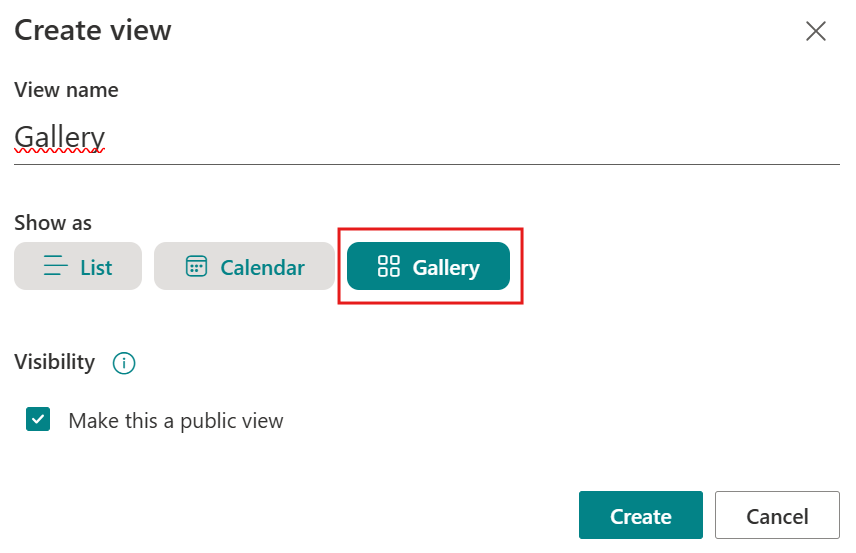
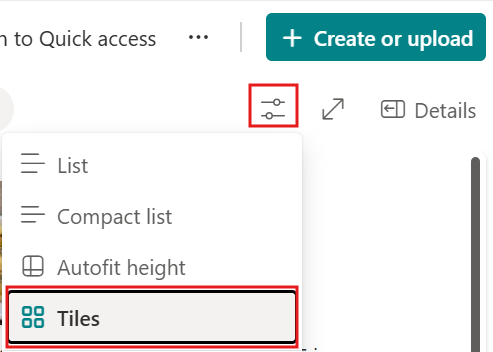
Create a view by clicking on the “+ Add View” button on the top of the document list, and select to show the images as “Gallery”: Or click on the options icon and switch to tyles view: